
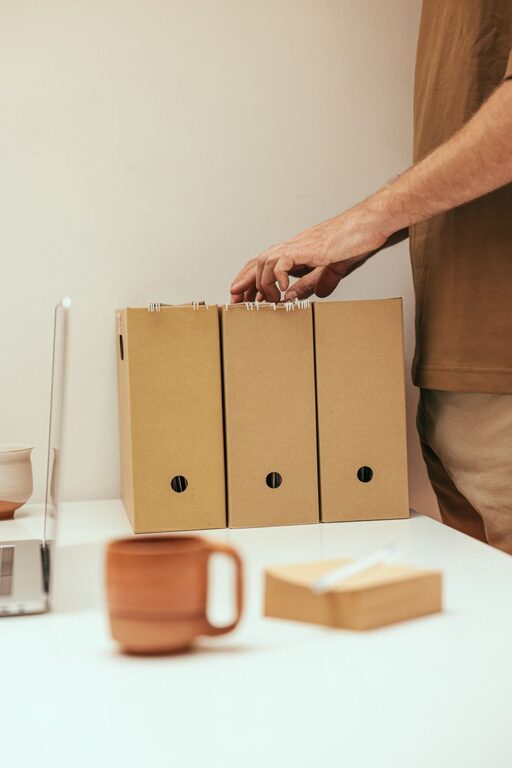
Keeping your computer files organized is essential for productivity and peace of mind. Whether you’re managing work documents, personal photos, or miscellaneous downloads, a tidy digital workspace saves time and reduces frustration. If you often find yourself lost in a sea of files and folders, this guide offers practical tips to organize your computer files efficiently.
Why Organizing Files Matters
An organized file system helps you:
– Quickly find documents and media
– Avoid accidental deletion or duplication
– Improve backup and recovery processes
– Maintain a clear and efficient workflow
Spending some time setting up a good organizational structure now will save hours later.
Step 1: Assess Your Current File Situation
Before reorganizing, take stock of your current files:
– How many files and folders do you have?
– Which files are used frequently? Which are old or unused?
– Are your files saved in random places or mostly in one location?
Understanding your file “ecosystem” helps you create a tailored organization plan.
Step 2: Choose a Logical Folder Structure
Creating folders and subfolders with clear names helps you navigate your files easily. Here are some common approaches:
Organize by Project or Client
If you work on multiple projects, create a folder for each project or client and store related files inside.
Example:
“`
Projects
├─ Project_A
├─ Project_B
└─ Project_C
“`
Organize by File Type or Purpose
Divide files by types such as Documents, Photos, Music, and Videos. Inside, you can add subfolders based on dates or topics.
Example:
“`
Documents
├─ Work
├─ Personal
└─ Receipts
Photos
├─ 2024_Vacation
└─ Family
“`
Use a Combination
For more complex needs, combine approaches, for example, having client-specific folders inside a main “Work” folder.
Step 3: Use Clear and Consistent Naming Conventions
File and folder names should be descriptive and consistent. Avoid vague names like “Document1” or “New Folder”. Here are tips for naming:
– Use clear keywords that describe the content
– Include dates in the format YYYY-MM-DD for easy sorting (e.g., “2024-06-15_MeetingNotes”)
– Avoid spaces in file names if you share files across different systems; use underscores (_) or dashes (-) instead
Step 4: Regularly Delete or Archive Unnecessary Files
Decluttering is key. Remove duplicates, outdated files, and downloads or temporary files you no longer need.
– Delete files you’re sure you won’t need
– Archive rarely accessed files to an external drive or cloud storage
– Empty your recycle or trash bin periodically
Step 5: Use Tags and Shortcuts (If Supported)
Some operating systems and software allow tagging files with keywords or creating shortcuts. This can make it easier to locate files that might logically belong in multiple categories.
For example, you could tag a photo as both “Vacation” and “Family”.
Step 6: Backup Your Organized Files Regularly
An organized file system is only effective if your files are safe. Use regular backups to protect your data from hardware failure or accidental deletion.
– Use external drives or cloud backup services
– Automate backups if possible
– Test your backups regularly to ensure they can be restored
Step 7: Maintain Your System Consistently
Organization isn’t a one-time task. Schedule regular intervals to review, clean, and update your folders and files.
– Set a weekly or monthly reminder
– Organize new files as soon as you create or download them
– Adjust your folder structure over time as needs change
Step 8: Utilize File Management Tools
If your file collection is large, consider using software tools designed to help organize files, such as:
– Duplicate file finders
– File renaming utilities
– Automated folder organizers
Research and select tools compatible with your operating system.
Final Thoughts
Organizing your files is a straightforward way to enhance your digital workflow and reduce stress. By assessing your files, creating a logical folder structure, using clear naming conventions, deleting what you don’t need, tagging files, backing up data, and maintaining your system regularly, you’ll keep your computer clutter-free and efficient.
Start small and build habits that keep your files in order—your future self will thank you!
About the Author